Integrating Google Tag Manager with Webflow: A Step-by-Step Guide
Connect Google Tag Manager to Webflow in four steps: create the container, paste the snippet, build a tag, verify it fires. A no-fluff walkthrough from an operator.
To connect Google Tag Manager to Webflow, you do four things: create a GTM container, paste its snippet into your Webflow site's custom code, build a tag inside GTM, then preview to confirm it fires. That's the whole job. No plugins, no developer, about fifteen minutes. The longer you've put this off, the more anticlimactic it'll feel.
Here's why it's worth doing. Without Google Tag Manager, every time marketing wants a new tracking pixel — a Meta tag, a LinkedIn Insight tag, a GA4 event — someone has to crack open the site's custom code and paste a script by hand. GTM is the container that holds all of that in one place, so you add and edit tags without touching the site again. One snippet in Webflow, then you manage everything from a dashboard. I've spent seven years living in GTM, and this first connection is the easy part. Mapping what fires later is where people get burned, but we'll get there.
Below is the exact setup, step by step. The screenshots are from a real container so you can match what you see.
Table of contents
- Set up a GTM account and create a container
- Add the GTM snippet to your Webflow site
- Build your first tag in GTM
- Verify the GTM integration with Webflow
- Why the easy part isn't the part that breaks
- FAQ
Set up a GTM account and create a container
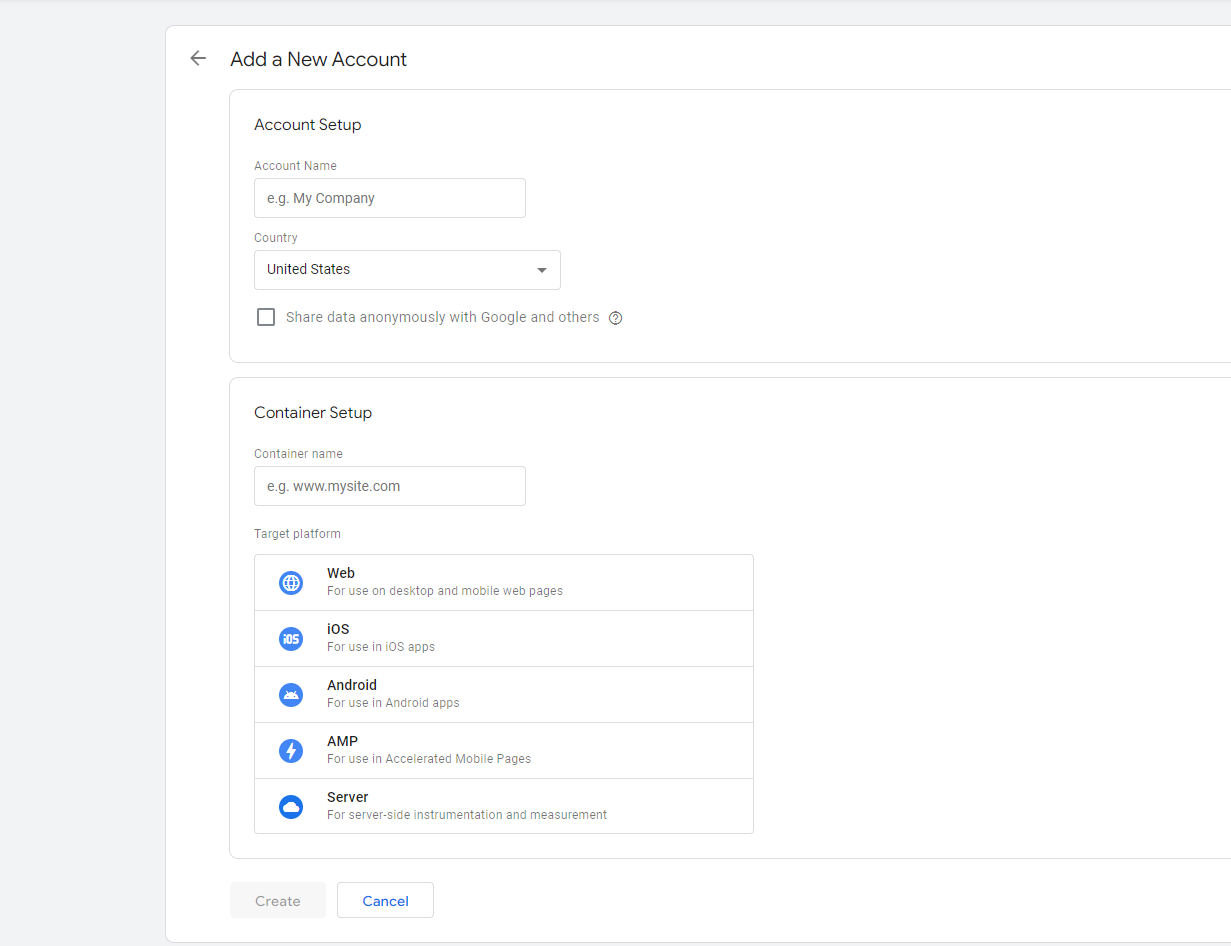
First you need a container. Think of it as the empty box GTM gives you to drop all your tags into. Creating one takes about a minute:
A. Go to tagmanager.google.com and sign up for an account.
B. Once you have signed up, click on "Create a Container" to set up a new container for your Webflow website.
C. Enter a container name and select "Web" as the target platform.
D. Accept the terms of service and click on "Create".
Pick "Web" — not iOS, not Android, not AMP. People rush this dropdown and end up with a server container that won't do anything on a Webflow site.
Add the GTM snippet to your Webflow site
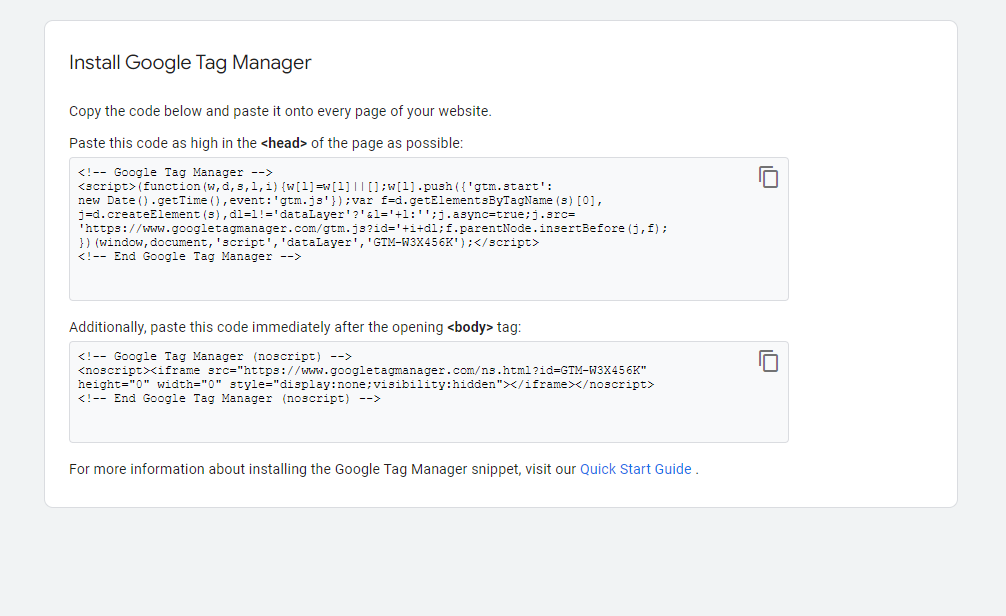
Now you connect the box to the site. GTM hands you a snippet of code, and you paste it into Webflow's custom code. Here's how to do it:
A. Go to your GTM account and click on "Install Google Tag Manager".
B. Copy the code provided.
C. Log into your Webflow account and go to your website's "Settings".
D. Go to "Custom Code" and paste the GTM code into the header section.
One detail GTM's own instructions gloss over: the install screen actually gives you two snippets. The first goes in the <head>, the second is meant to sit right after the opening <body> tag as a <noscript> fallback. Webflow's project-level custom code has a header field and a footer field, not a body field, so the head snippet is the one that matters here and it's enough to get tags firing. If you want the <noscript> fallback too, you'd add it via an Embed element at the top of the page body. For most setups the head snippet alone does the job.
Publish your Webflow site after you paste the code. A common head-scratcher: people paste the snippet, skip publishing, then wonder why GTM can't see it. The custom code only goes live on a published site.
Build your first tag in GTM
GTM is connected, but right now the box is empty. Tags are the things that actually do the work — sending a pageview to Google Analytics, firing a conversion to Meta, dropping a remarketing pixel. Let's set one up:
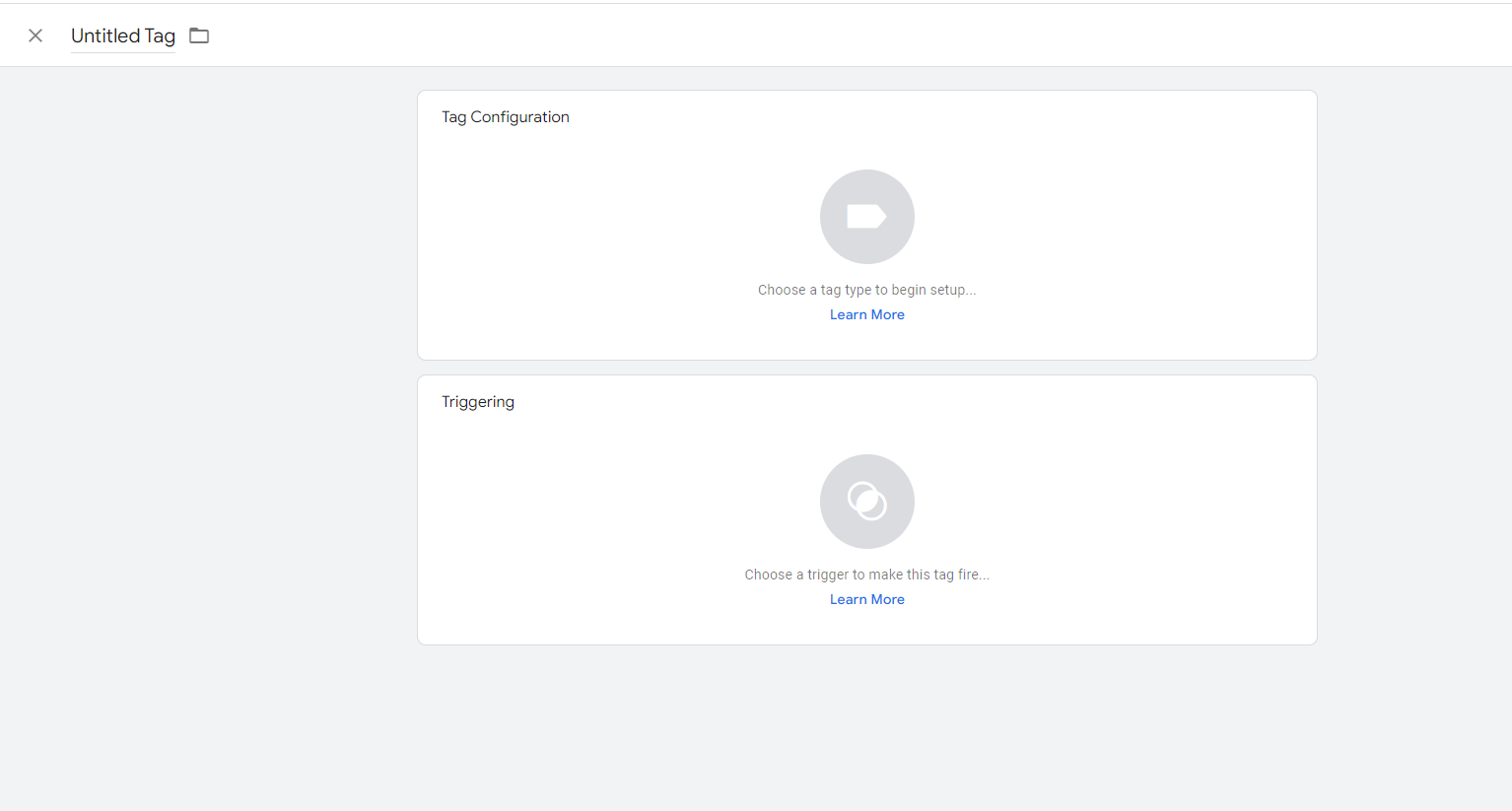
A. Go to your GTM account and click on "Tags".
B. Click on "New" to create a new tag.
C. Choose a tag type, such as Google Analytics, and set up the tag according to the specific tracking or marketing requirements.
D. Publish the tag.
That step C is doing a lot of quiet lifting. Every tag needs a trigger — the condition that tells it when to fire. "All Pages" is the usual starting point for something like a GA4 config tag, but the moment you want a tag to fire only on a form submit or a specific button click, the trigger is where the real thinking happens. If you're wiring up GA4 specifically, our walkthrough on setting up conversion tracking in Google Analytics picks up right where this leaves off.
Verify the GTM integration with Webflow
Never trust a tag you haven't watched fire. This is the step people skip, and it's the one that saves you from a month of empty reports. To confirm GTM is talking to your Webflow site:
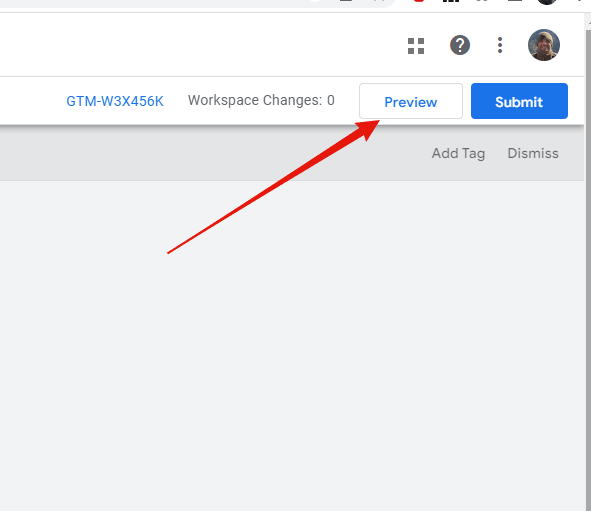
A. Hit the preview button
B. Type in your website address in the box including https://
C. If the GTM container is correctly integrated with Webflow, you should see it connect and report on the connection like below.
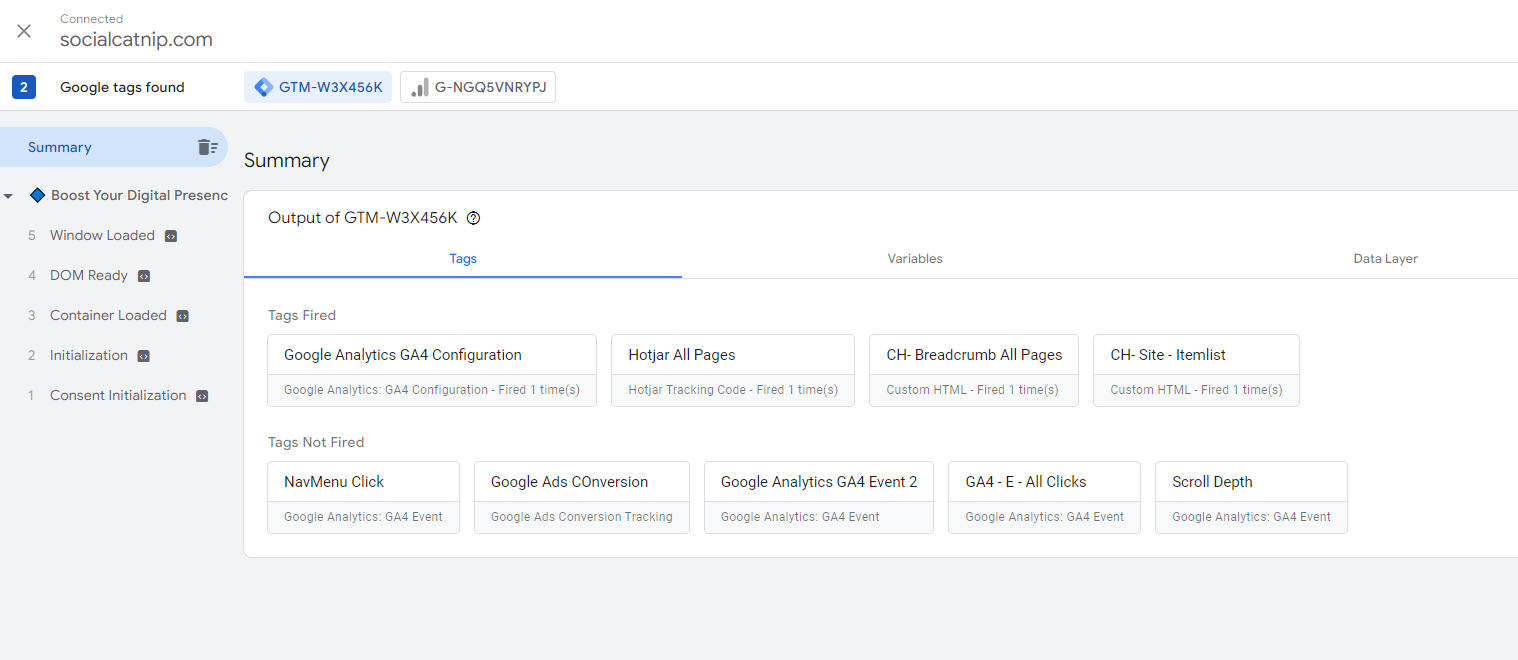
When Preview connects, Tag Assistant opens your site in a debug pane and shows you exactly which tags fired on which event. Click around. Submit a test form. Watch the tags light up in real time. If a tag stays dark when it should fire, the trigger is wrong — not the snippet. That distinction will save you hours.
Why the easy part isn't the part that breaks
Connecting GTM to Webflow is genuinely simple, and I'd be lying if I dressed it up as anything else. The hard part comes later, and it's almost always the same thing: mapping.
When you build a tracking system, the data has to line up at every handoff. The variable name in GTM has to match the parameter your tag sends, which has to match the event name GA4 expects, which has to match what your CRM reads. One wrong value and the whole attribution chain breaks. Not bends — breaks. I once spent weeks on a large South African ecommerce brand mid-migration from Universal Analytics to GA4, combing through broken calls one at a time. When the mapping was finally right, their data quality jumped by an order of magnitude — about a 70% improvement, with event properties finally coming through clean.
That's the difference between a number you believe and a fast number you don't. A tag that fires isn't the same as a tag that fires correctly, and "real-time" means nothing if the data underneath it is wrong. Get the plumbing right and your pipeline tells the truth from click to closed-won.
If you'd rather not hand-wire every tag, trigger, and variable across a growing site, that's the work we do — building the signal path so marketing can ship without breaking attribution. You can see how we approach it on our tracking and analytics services page. And if you're heading into a GA4 build next, our GA4 experts breakdown is a good next read, along with the UA to GA4 transition guide.
FAQ
Do I need GTM if I only use Google Analytics? Not strictly — you can paste a GA4 tag straight into Webflow's custom code. But the moment you add a second tool (a Meta pixel, a LinkedIn tag, a conversion event), GTM saves you from cracking open the site's code every time. It's worth setting up before your stack grows, not after.
Where exactly does the GTM snippet go in Webflow? The head snippet goes in Project Settings → Custom Code → Head Code so it loads on every page. After pasting it, publish the site. The custom code doesn't take effect until you publish.
Why isn't my GTM tag firing on the live site? Three usual suspects, in order: you didn't publish the Webflow site after pasting the snippet, you didn't publish the container in GTM after building the tag, or the tag's trigger is wrong. Use Preview mode to see which tags fire on which events — it tells you instantly whether it's a connection problem or a trigger problem.
Can I use GTM on a free Webflow plan? Custom code in the project-wide header requires a paid site plan or a hosted Webflow site. On a free Webflow.io subdomain you won't have access to the custom code field you need, so plan for a paid plan if tracking matters to you.
What's the difference between a tag, a trigger, and a variable? A tag is the thing that does the work (sends data to GA4, fires a pixel). A trigger is the condition that tells the tag when to fire (all pages, a form submit, a button click). A variable is a stored value the tag can reference. Get the relationship between these three right and GTM does whatever you need; get it wrong and tags fire at the wrong time or not at all.
How do I track form submissions from a Webflow form? You set up a trigger in GTM that listens for the form submission event, then attach a conversion tag to it. Webflow forms don't always expose a clean event by default, so this is one of those spots where the trigger setup takes real care. Our guide on capturing UTMs in Webflow and passing them to a form covers the related plumbing for getting campaign data onto those submissions.
As always, if you need help wiring up tracking or want a second set of eyes on your tag setup, feel free to reach out. We're always here to help. If I can improve this article, send me an email at sgowing at socialcatnip.com or let me know.